
Halloween Sale Special Limited Time 75% Discount Offer - Ends in 0d 00h 00m 00s - Coupon code = drift75
Pass the ATLASSIAN Jira Administrator ACP-120 Questions and answers with ExamsMirror
Exam ACP-120 Premium Access
View all detail and faqs for the ACP-120 exam
822 Students Passed
88% Average Score
97% Same Questions
You need to create an automation rule as follows:
When a Story is updated
If it is unestimated
Comment on its Sub-tasksWhich two rule elements are needed in this rule? (Choose two.)
Options:
Branch rule on Sub-tasks
Issue fields condition on whether Story Points is empty
Related issues condition on Issues in the sprint
Branch rule on Stories
To create an automation rule that triggers when a Story is updated, checks if it is unestimated (i.e., has no Story Points), and comments on its Sub-tasks, the rule requires aBranch rule on Sub-tasksto target the Sub-tasks and anIssue fields condition on whether Story Points is emptyto check the unestimated status. These two elements are essential to meet the rule’s requirements.
Explanation of the Correct Answers:
Branch rule on Sub-tasks (Option A):
The rule needs to comment on the Sub-tasks of the updated Story. ABranch ruleis used in Jira automation to perform actions on related issues, such as Sub-tasks. TheBranch rule on Sub-tasksallows the rule to iterate over each Sub-task of the Story and execute the comment action.
Exact Extract from Documentation:
Branch rule / related issues
A branch rule allows actions to be performed on issues related to the trigger issue, such as Sub-tasks, Epics, or linked issues.
To comment on Sub-tasks:
Add aBranch rule / related issuescomponent.
SelectSub-tasksas the related issue type.
Add aComment on issueaction within the branch to comment on each Sub-task.Note: The branch rule processes each related issue individually.(Source: Atlassian Support Documentation, "Jira automation actions")
Why This Fits: TheBranch rule on Sub-tasksis necessary to target the Sub-tasks of the Story and apply the comment action, satisfying the requirement to comment on Sub-tasks.
Issue fields condition on whether Story Points is empty (Option B):
The rule must check if the Story is unestimated, meaning theStory Pointsfield is empty (null or not set). TheIssue fields conditionallows checking the value of a field, such asStory Points, to ensure it meets a condition (e.g., is empty).
Exact Extract from Documentation:
Issue fields condition
TheIssue fields conditionchecks the value of an issue field against a specified criterion.
To check if Story Points is empty:
Add anIssue fields condition.
SelectStory Pointsas the field.
Set the condition tois empty.Note: This condition ensures the rule only proceeds if the field has no value.(Source: Atlassian Support Documentation, "Jira automation conditions")
Why This Fits: TheIssue fields condition on whether Story Points isemptyensures the rule only comments on Sub-tasks if the Story is unestimated, satisfying the condition requirement.
Why Other Options Are Incorrect:
Related issues condition on Issues in the sprint (Option C):
ARelated issues conditionchecks if related issues (e.g., Sub-tasks, Epics) meet certain criteria. The requirement does not involve checking the sprint status of issues, only that the Story is unestimated and comments are added to Sub-tasks. This condition is irrelevant to the rule.
Extract from Documentation:
TheRelated issues conditionchecks if related issues meet a condition (e.g., all Sub-tasks are resolved). It is not needed for commenting on Sub-tasks without additional criteria.
(Source: Atlassian Support Documentation, "Jira automation conditions")
Branch rule on Stories (Option D):
ABranch rule on Storieswould target Stories, not Sub-tasks. Since the rule needs to comment on the Sub-tasks of the updated Story, a branch on Sub-tasks (Option A) is required, not Stories.
Extract from Documentation:
ABranch ruletargets specific related issues (e.g., Sub-tasks, Epics). Choose the correct issue type to match the action (e.g., Sub-tasks for commenting on Sub-tasks).
(Source: Atlassian Support Documentation, "Jira automation actions")
Additional Notes:
The complete rule would look like this:
Trigger: Issue Updated (filter to Story issue type).
Condition: Issue fields condition (Story Points is empty).
Action: Branch rule on Sub-tasks.
Action: Comment on issue (add the desired comment).
The rule assumes theStory Pointsfield is available and Sub-tasks exist for the Story.
The rule can be configured inProject settings > Automation(for project-level rules) orSettings > System > Automation rules(for global rules).
Users need to be able to select Browser Type when editing bugs in the DEV project. However, they cannot see the field. Identify three possible root causes. (Choose three.)
Options:
Project roles
Field configurations
Custom field context
Project permissions
Issue security scheme
The issue is that users cannot see theBrowser Typefield when editing bugs in the DEV project, a company-managed project. This suggests a configuration issue preventing the field from being displayed or accessible. The three possible root causes arefield configurations(Option B),custom field context(Option C), andproject permissions(Option D), as these can affect field visibility or editability.
Explanation of the Correct Answers:
Field configurations (Option B):
Field configurationsdetermine whether a field is required, optional, or hidden for specific issue types in a project. If theBrowser Typefield is marked asHiddenin the field configuration for bugs in the DEV project, it will not appear on any screens (Create, Edit, View), preventing users from seeing or selecting it when editing bugs.
Exact Extract from Documentation:
Configure field settings
Field configurations control field behavior (required, optional, hidden) for issue types in a project.
If a field is hidden:
It does not appear on any screens, including Create, Edit, or View.To check:
Go toProject settings > Fields.
Review the field configuration for the issue type (e.g., Bug).
Ensure the field (e.g., Browser Type) is not marked asHidden.Note: Hidden fields are completely removed from issue operations.(Source: Atlassian Support Documentation, "Configure field settings")
Why This Fits: IfBrowser Typeis hidden in the field configuration for bugs, users will not see it when editing, making this a possible root cause.
Custom field context (Option C):
Thecustom field contextdefines which projects and issue types a custom field applies to. If theBrowser Typefield’s context does not include the DEV project or theBugissue type, the field will not be available for bugs in that project, causing it to be invisible during editing.
Exact Extract from Documentation:
Manage custom field contexts
A custom field’s context determines the projects and issue types where it is available.
If a field is not visible:
Check the field’s context inSettings > Issues > Custom fields.
Ensure the context includes the project (e.g., DEV) and issue type (e.g., Bug).Note: A misconfigured context can prevent a field from appearing in a project.(Source: Atlassian Support Documentation, "Manage custom fields in Jira Cloud")
Why This Fits: If theBrowser Typefield’s context excludes the DEV project orBugissue type, it will not be available, making this a possible root cause.
Project permissions (Option D):
TheEdit Issuespermission in the project’s permission scheme determines whether users can edit issues, including fields likeBrowser Type. If users lack this permission for bugs in the DEV project, they will not be able to edit the field, which could manifest as the field being invisible or non-editable during editing attempts.
Exact Extract from Documentation:
Manage permissions in Jira Cloud
TheEdit Issuespermission allows users to modify issue fields, including custom fields.
If users cannot edit a field:
CheckProject settings > Permissions.
Ensure the user, group, or role has theEdit Issuespermission.Note: Lack of edit permission can prevent users from seeing or interacting with editable fields.(Source: Atlassian Support Documentation, "Manage permissions in Jira Cloud")
Why This Fits: If users lack theEdit Issuespermission, they may not be able to edit or see theBrowser Typefield as editable, making this a possible root cause.
Why Other Options Are Incorrect:
Project roles (Option A):
Project roles are used in permission schemes or other configurations to grant permissions (e.g.,Edit Issues). While a role could be part of the permission scheme affectingEdit Issues, the root cause is the permission itself (Option D), not the role. Roles do not directly control field visibility.
Extract from Documentation:
Project roles are used to assign permissions, not to control field visibility directly. Check permissions likeEdit Issuesfor editability issues.
(Source: Atlassian Support Documentation, "Manage project roles")
Issue security scheme (Option E):
Anissue security schemerestricts which issues a user can view based on security levels. If users can see the bug issues but not theBrowser Typefield, the issue is not about issue visibility but field visibility or editability, sothe security scheme is not a root cause.
Extract from Documentation:
Issue security schemes control which issues are visible, not which fields within an issue are displayed.
(Source: Atlassian Support Documentation, "Configure issue security schemes")
Additional Notes:
To troubleshoot:
CheckProject settings > Fieldsto ensureBrowser Typeis not hidden in the field configuration for bugs.
Verify the field’s context inSettings > Issues > Custom fieldsincludes the DEV project andBugissue type.
Confirm users have theEdit Issuespermission inProject settings > Permissions.
Other potential causes (not listed) include the field not being on theEdit screen(screen configuration) or being hidden in theissue layout, but these are covered byfield configurationsand permissions broadly.
Resolving these issues may requireJira administrator(for field configurations, contexts) orproject admin(for permissions) privileges.
You must add a new issue type to an existing company-managed project. Identify the configuration item that is definitely not impacted.
Options:
Issue layout
Issue type screen scheme
Issue security scheme
Workflow scheme
Field configuration scheme
Adding a new issue type to a company-managed project requires updating configurations that map issue types to various settings (e.g., screens, workflows, fields). The configuration item that isdefinitely not impactedis theissue security scheme(Option C), as it controls issue visibility and is not directly tied to issue types.
Explanation of the Correct Answer (Option C):
Anissue security schemedefines security levels that restrict which users can view issues in a project, based on criteria like users, groups, or roles. It is applied at the project level and is not specific to issue types. Adding a new issue type does not require changes to the issue security scheme, as security levels apply to all issues in the project regardless of their type.
Exact Extract from Documentation:
Configure issue security schemes
Issue security schemes define security levels to control who can view issues in a project.
Impact of issue types:
Security levels are applied to all issues in a project, regardless of issue type.
Adding a new issue type does not affect the issue security scheme.To check:
Go toProject settings > Issue security.
Review the security levels and their criteria.Note: Issue security is independent of issue type configurations.(Source: Atlassian Support Documentation, "Configure issue security schemes")
Why This Fits: Theissue security schemeis not impacted by adding a new issue type, as it operates at the project level and does not depend on issue type configurations, making Option C the correct answer.
Why Other Options Are Incorrect:
Issue layout (Option A):
Theissue layoutdefines which fields are displayed or hidden in the issue view for each issue type. Adding a new issue type may require configuring a new issue layout to specify field visibility for that type, impacting this configuration.
Extract from Documentation:
Issue layouts are configured per issue type inProject settings > Issue layout. Adding a new issue type may require a new layout configuration.
(Source: Atlassian Support Documentation, "Configure issue layouts in Jira Cloud")
Issue type screen scheme (Option B):
Theissue type screen schememaps screens to issue types for operations (Create, Edit, View). Adding a new issue type requires assigning a screen to it in the scheme, impacting this configuration.
Extract from Documentation:
Adding a new issue type requires updating the issue type screen scheme to assign screens for the new type.
(Source: Atlassian Support Documentation, "Configure screen schemes in Jira Cloud")
Workflow scheme (Option D):
Theworkflow schememaps workflows to issue types. Adding a new issue type requires assigning a workflow to it in the scheme, impacting this configuration.
Extract from Documentation:
Adding a new issue type requires updating the workflow scheme to assign a workflow for the new type.
(Source: Atlassian Support Documentation, "Configure workflow schemes")
Field configuration scheme (Option E):
Thefield configuration schememaps field configurations to issue types, defining field behavior (required, optional, hidden). Adding a new issue type may require assigning a field configuration to it, impacting this configuration.
Extract from Documentation:
Adding a new issue type may require updating the field configuration scheme to assign a configuration for the new type.
(Source: Atlassian Support Documentation, "Configure field settings")
Additional Notes:
Steps to add a new issue type:
Add the issue type to the project’s issue type scheme inProject settings > Issue types.
Update theissue type screen scheme,workflow scheme, andfield configuration schemeto include the new issue type.
Configure theissue layoutfor the new issue type if needed.
These changes requireJira administratorprivileges for schemes andproject adminprivileges for issue layout.
Theissue security schemeremains unaffected, as it applies to all issues in the project.
An excerpt of the DEV permission scheme is shown:
Project Permissions|Users / Groups / Project Roles
Administer Projects | Project Role (Administrators)
View Development Tools | Project Role (Core), Project Role (Sprint Team)
Manage Sprints | Project Role (atlassian-addons-project-access), Project Role (Core)
Ahmed is a project administrator in DEV and not a Jira administrator. He is unable to create sprints in DEV. What should Ahmed do?
Options:
Add himself to the Core project role
Add himself to the Sprint Team project role
Add the Administrators project role to the ‘View Development Tools’ permission
Add the Administrators project role to the ‘Manage Sprints’ permission
Ahmed is a project administrator in the DEV project, which means he is in theAdministratorsproject role (as per the permission scheme, whereAdminister Projectsis granted to this role). However, he cannot create sprints because he lacks theManage Sprintspermission, which is granted to theatlassian-addons-project-accessandCoreproject roles. To resolve this, Ahmed shouldadd the Administrators project role to the ‘Manage Sprints’ permission(Option D).
Explanation of the Correct Answer (Option D):
TheManage Sprintspermission allows users to create, start, complete, or delete sprints in a project. According to the permission scheme, this permission is granted to theatlassian-addons-project-accessandCoreproject roles, but not to theAdministratorsproject role, which Ahmed belongs to.
As a project administrator, Ahmed has theAdminister Projectspermission, which allows him to modify the project’s permission scheme (viaProject settings > Permissions) and add theAdministratorsproject role to theManage Sprintspermission. This will grant him the ability to create sprints without needing Jira administrator privileges.
Exact Extract from Documentation:
Manage Sprints permission
TheManage Sprintspermission allows users to create, start, complete, or delete sprints in a project. This permission is granted via the project’s permission scheme.
To update permissions:
Go toProject settings > Permissions.
Edit the permission scheme and add a user, group, or project role (e.g., Administrators) to theManage Sprintspermission.Note: Project administrators can modify the permission scheme for their project if they have theAdminister Projectspermission.(Source: Atlassian Support Documentation, "Manage permissions in Jira Cloud")
Why This Fits: Adding theAdministratorsproject role to theManage Sprintspermission directly addresses Ahmed’s lack of permission to create sprints, leveraging his existing project administrator privileges.
Why Other Options Are Incorrect:
Add himself to the Core project role (Option A):
Adding himself to theCoreproject role would grant Ahmed theManage Sprintspermission, as this role is listed for that permission. However, as a project administrator, Ahmed can modify the permission scheme directly instead of adding himself to another role, which may grant unnecessary permissions (e.g.,View Development Tools). Option D is more appropriate, as it aligns with his administrative role.
Extract from Documentation:
Project roles are managed inProject settings > People. Adding a user to a role grants all permissions associated with that role, which may include more than needed.
(Source: Atlassian Support Documentation, "Manage project roles")
Add himself to the Sprint Team project role (Option B):
TheSprint Teamproject role is only listed for theView Development Toolspermission, notManage Sprints. Adding himself to this role would not grant Ahmed the ability to create sprints.
Extract from Documentation:
Permissions are granted to specific roles or groups in the permission scheme. Verify the roles assigned to each permission before adding users.
(Source: Atlassian Support Documentation, "Manage permissions in Jira Cloud")
Add the Administrators project role to the ‘View Development Tools’ permission (Option C):
TheView Development Toolspermission allows users to view development-related information (e.g., commits, builds). It is unrelated to creating sprints, so adding theAdministratorsrole to this permission would not help Ahmed.
Extract from Documentation:
TheView Development Toolspermission grants access to development information, not sprint management.
(Source: Atlassian Support Documentation, "Manage permissions in Jira Cloud")
Additional Notes:
Ahmed’s ability to modify the permission scheme depends on hisAdminister Projectspermission, which is confirmed by his role as a project administrator.
Theatlassian-addons-project-accessrole is typically used for system or app-related permissions and is not relevant for Ahmed to modify.
After adding theAdministratorsrole toManage Sprints, Ahmed and other administrators will gain sprint management capabilities.
In project ENG, components are configured as shown:
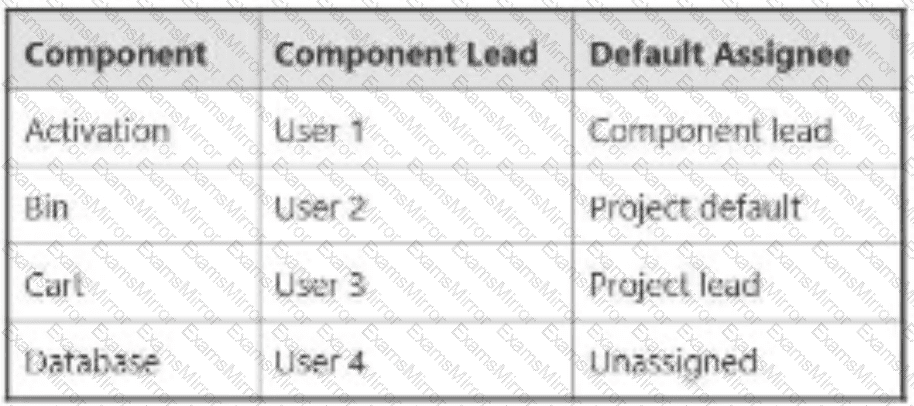
The Default Assignee for ENG is the Project Lead. You select all four components on a new issue and leave Assignee as Automatic. To whom will the issue be assigned?
Options:
User 1
User 2
User 3
User 4
Project Lead
Unassigned
In Jira Software Cloud, theAssigneefield for a new issue can be set toAutomatic, in which case Jira determines the assignee based on the project’sDefault Assigneesetting and any component-specificDefault Assigneesettings. The issue in the ENG project has all four components selected (Activation, Bin, Cart, Database), and the Assignee is left asAutomatic. The issue will be assigned to theProject Lead(Option E) due to the rules for handling multiple components with conflicting default assignees.
Explanation of the Correct Answer (Option E):
Project Default Assignee: The project ENG has itsDefault Assigneeset to theProject Lead, meaning that if no component-specific assignee is determined, the issue will be assigned to the Project Lead.
Component Default Assignees:
Activation: Default Assignee isComponent lead(User 1).
Bin: Default Assignee isProject default(Project Lead).
Cart: Default Assignee isComponent lead(User 3).
Database: Default Assignee isUnassigned.
Automatic Assignment Logic with Multiple Components: When an issue has multiple components selected, Jira evaluates theDefault Assigneefor each component:
If all components have the same default assignee, that user is assigned.
If components have different default assignees (or some are unassigned), Jira falls back to the project’sDefault Assignee(Project Lead in this case).
In this scenario:
Activationassigns to User 1.
Binassigns to the Project Lead (via project default).
Cartassigns to User 3.
Databaseassigns to Unassigned.
Since the components have conflicting default assignees (User 1, Project Lead, User 3, Unassigned), Jira cannot resolve to a single assignee and uses the project’sDefault Assignee, which is theProject Lead.
Exact Extract from Documentation:
Configure default assignees
TheDefault Assigneefor a project or component determines who is assigned to new issues when theAssigneefield is set toAutomatic.
Multiple components:
If an issue has multiple components with different default assignees, Jira assigns the issue to the project’sDefault Assignee.To configure:
Go toProject settings > Componentsto set component default assignees.
Go toProject settings > Detailsto set the project’sDefault Assignee.Note: The project’sDefault Assigneeis used when component assignees conflict.(Source: Atlassian Support Documentation, "Manage project settings in Jira Cloud")
Why This Fits: With conflicting default assignees across the four components, Jira assigns the issue to the project’sDefault Assignee, which is theProject Lead, making Option E the correct answer.
Why Other Options Are Incorrect:
User 1 (Option A):
User 1 is the default assignee for theActivationcomponent (as the Component lead). However, with multiple components selected and different assignees (User 1, Project Lead, User 3, Unassigned), Jira falls back to the project’sDefault Assignee(Project Lead), not User 1.
Extract from Documentation:
If multiple components have different default assignees, the project’sDefault Assigneeis used, not a component-specific assignee.
(Source: Atlassian Support Documentation, "Manage project settings in Jira Cloud")
User 2 (Option B):
User 2 is the Component lead forBin, but the default assignee forBinis set toProject default(Project Lead), not the Component lead. Even if it were User 2, the conflicting assignees across components would result in the Project Lead being assigned.
Extract from Documentation:
TheProject defaultsetting for a component assigns issues to the project’sDefault Assignee, not the Component lead.
(Source: Atlassian Support Documentation, "Manage components in Jira Cloud")
User 3 (Option C):
User 3 is the default assignee for theCartcomponent (as the Component lead). However, the conflicting assignees across components (User 1, Project Lead, User 3, Unassigned) result in the Project Lead being assigned, not User 3.
Extract from Documentation:
Conflicting component assignees result in the project’sDefault Assigneebeing used.
(Source: Atlassian Support Documentation, "Manage project settings in Jira Cloud")
User 4 (Option D):
User 4 is the Component lead forDatabase, but the default assignee forDatabaseisUnassigned, not User 4. Even if it were User 4, the conflicting assignees would result in the Project Lead being assigned.
Extract from Documentation:
TheUnassigneddefault assignee for a component does not override the project’sDefault Assigneein conflicts.
(Source: Atlassian Support Documentation, "Manage components in Jira Cloud")
Unassigned (Option F):
While theDatabasecomponent has a default assignee ofUnassigned, the presence of other components with different assignees (User 1, Project Lead, User 3) creates a conflict, and Jira assigns the issue to the Project Lead, notUnassigned.
Extract from Documentation:
Unassignedas a default assignee is overridden by the project’sDefault Assigneein cases of conflict.
(Source: Atlassian Support Documentation, "Manage project settings in Jira Cloud")
Additional Notes:
TheDefault Assigneefor the project is set inProject settings > Details, and component-specific default assignees are set inProject settings > Components.
The user creating the issue must have theAssign Issuespermission, and the Project Lead must have theAssignable Userpermission to be assigned.
If only one component were selected (e.g., Activation), the issue would be assigned to User 1, but selecting all four components triggers the conflict resolution to the Project Lead.
You are configuring an issue type screen in a team-managed project. Which statement is true?
Options:
You can edit the name of any field on the screen.
You can reuse a custom field from another team-managed project.
You can add any field type to the Context fields section.
You can add any field type to the Description fields section.
You can reorder custom fields within all sections of the screen.
In a team-managed project, theissue type screen(configured inProject settings > Issue types) determines which fields are displayed for an issue type and how they are organized (e.g., in sections like Description or Context fields). The true statement is thatyou can reorder custom fields within all sections of the screen(Option E), as team-managed projects allow flexible reordering of fields within their designated sections.
Explanation of the Correct Answer (Option E):
In team-managed projects, the issue type screen is configured per issue type, and fields (including custom fields) are organized into sections (e.g., Description fields, Context fields). Users with appropriate permissions (e.g., project admins) can reorder custom fields within any section of the screen to customize the layout, ensuring fields appear in the desired order for creation, editing, or viewing.
Exact Extract from Documentation:
Configure issue types in team-managed projects
Each issue type in a team-managed project has its own screen configuration, defining which fields are displayed and their order.
To reorder fields:
Go toProject settings > Issue types.
Select the issue type and edit its screen.
Drag and drop fields (including custom fields) within sections (e.g., Description fields, Context fields) to reorder them.Note: Custom fields can be reordered within any section of the screen, but some system fields have fixed positions.(Source: Atlassian Support Documentation, "Configure issue types in team-managed projects")
Why This Fits: The ability to reorder custom fields within all sections of the issue type screen is a standard feature in team-managed projects, making Option E the true statement.
Why Other Options Are Incorrect:
You can edit the name of any field on the screen (Option A):
In team-managed projects, you cannot edit the name of fields directly on the screen configuration. Custom field names are set when the field is created (Project settings > Project fields), and system field names (e.g., Summary, Description) are fixed. The screen configuration only allows adding, removing, or reordering fields, not renaming them.
Extract from Documentation:
Field names are set inProject settings > Project fieldsfor custom fields or are fixed for system fields. Screen configurations do not allow renaming fields.
(Source: Atlassian Support Documentation, "Manage fields in team-managed projects")
You can reuse a custom field from another team-managed project (Option B):
Custom fields in team-managed projects are project-specific and cannot be reused across projects, unlike company-managed projects where global custom fields are shared. To use a similar field, you must create a new custom field in the project.
Extract from Documentation:
Custom fields in team-managed projects are unique to the project and cannot be reused from other team-managed projects.
(Source: Atlassian Support Documentation, "Manage fields in team-managed projects")
You can add any field type to the Context fields section (Option C):
TheContext fieldssection (right panel in the issue view) has restrictions on which field types can be added. System fields likeSummary,Description, and certain others are fixed in the main section and cannot be moved to the Context fields section. Only eligible fields (e.g., custom fields, Labels, Components) can be added to this section.
Extract from Documentation:
TheContext fieldssection is limited to certain field types (e.g., custom fields, Labels). Core fields like Summary and Description cannot be moved to Context fields.
(Source: Atlassian Support Documentation, "Configure issue types in team-managed projects")
You can add any field type to the Description fields section (Option D):
TheDescription fieldssection (main section below the Summary) also has restrictions. Fields likeSummary,Issue Type, andStatusare fixed in their positions, and not all field types can be added to the Description fields section. Only certain fields (e.g., Description, custom text fields) are eligible.
Extract from Documentation:
TheDescription fieldssection is for fields like Description or custom text fields. Some system fields have fixed positions and cannot be moved.
(Source: Atlassian Support Documentation, "Configure issue types in team-managed projects")
Additional Notes:
Configuring issue type screens requiresproject adminprivileges in a team-managed project (Project settings > Issue types).
Reordering fields enhances usability by prioritizing important fields in each section.
System fields may have limited reordering options compared to custom fields.
Jon needs to create groups and manage membership in groups. Which administrator privilege does Jon need?
Options:
Organization admin
Product Admin role for Jira
System administrator
Jira administrator
Project administrator
Creating groups and managing group membership in Jira Software Cloud are system-level tasks that require theJira administratorprivilege. This privilege allows Jon to access user management settings and perform group-related actions.
Explanation of the Correct Answer (Option D):
TheJira administratorprivilege grants users the ability to manage global settings, including creating groups and managing their membership. This includes adding or removing users from groups, which is necessary for Jon’s requirements.
Exact Extract from Documentation:
Jira administrator permissions
Jira administrators can manage global settings, including:
Creating and deleting groups.
Adding or removing users from groups.
Managing global permissions and user access.To create or manage groups:
Go toSettings > User management > Groups.
Create a new group or edit existing group membership.Note: Only Jira administrators or organization admins with user management permissions can perform these actions.(Source: Atlassian Support Documentation, "Manage groups in Jira Cloud")
Why This Fits: TheJira administratorprivilege directly enables Jon to create groups and manage their membership, making Option D the correct choice.
Why Other Options Are Incorrect:
Organization admin (Option A):
Organization admins manage the Atlassian organization, including user access to products and billing. While they can manage users and groups at the organization level, creating groups specifically in Jira requiresJira administratorprivileges unless the organization admin also has this role.
Extract from Documentation:
Organization admins manage user access, billing, and security at the Atlassian organization level. Managing Jira-specific groups requires Jira administrator privileges.
(Source: Atlassian Support Documentation, "Manage your Atlassian organization")
Product Admin role for Jira (Option B):
TheProduct Adminrole for Jira grants access to manage product-specific settings, such as user access to Jira Software. However, creating and managing groups is a system-level task that requiresJira administratorprivileges.
Extract from Documentation:
Product admins manage user access to specific products (e.g., Jira Software). Group management requires Jira administrator or organization admin privileges.
(Source: Atlassian Support Documentation, "Manage product access")
System administrator (Option C):
The termsystem administratoris not a standard role in Jira Cloud. In some contexts, it may refer toJira administratorsororganization admins, but it is not a distinct privilege for group management.
Extract from Documentation:
Jira Cloud uses roles like Jira administrator and organization admin. There is no distinct “system administrator” role for group management.
(Source: Atlassian Support Documentation, "Manage users and groups")
Project administrator (Option E):
Project administrators manage settings for specific projects (e.g., permissions, components) but cannot create or manage groups, as these are global settings.
Extract from Documentation:
Project administrators manage project-specific settings but cannot access global settings like user or group management.
(Source: Atlassian Support Documentation, "Manage project permissions")
Additional Notes:
Jon’s tasks require access toSettings > User management > Groups, which is restricted toJira administrators.
If Jon is also an organization admin, he might have overlapping permissions, but theJira administratorrole is the most direct for group management in Jira.
The Customer Relations team has just been given access to Jira. They can see two projects but not the project boards. They created several advanced searches and want other project members to see the results. Which permission do they require without receiving too much access?
Options:
Browse Projects
Share dashboards and filters
Board administrator
Administer Jira
The Customer Relations team can see two projects (indicating they haveBrowse Projectspermission) but not the project boards, and they want to share advanced searches (filters) with other project members. The permission required to share filters without granting excessive access is theShare dashboards and filtersglobal permission (Option B).
Explanation of the Correct Answer (Option B):
TheShare dashboards and filtersglobal permission allows users to share filters and dashboards with other users, groups, or roles. This permission is necessary for the team to make their advanced searches visible to other project members. It is a targeted permission that does not grant additional administrative or project-level access.
Exact Extract from Documentation:
Share dashboards and filters permission
TheShare dashboards and filtersglobal permission allows users to share filters and dashboards with other users, groups, projects, or the entire organization.
To grant this permission:
Go toSettings > System > Global permissions.
Add a user, group, or role to theShare dashboards and filterspermission.Note: This permission is required to make filters or dashboards accessible to others, but it does not grant access to view issues or manage boards.(Source: Atlassian Support Documentation, "Manage global permissions")
Why This Fits: TheShare dashboards and filterspermission directly enables the team to share their advanced searches (filters) with other project members without granting unnecessary privileges, making Option B the correct choice.
Why Other Options Are Incorrect:
Browse Projects (Option A):
TheBrowse Projectspermission allows users to view issues in a project. Since the team can already see two projects, they likely have this permission. It does not control the ability to share filters or access project boards.
Extract from Documentation:
TheBrowse Projectspermission allows users to view issues and projects. It does not include sharing filters or managing boards.
(Source: Atlassian Support Documentation, "Manage project permissions")
Board administrator (Option C):
TheBoard administratorrole (orManage Sprintspermission for company-managed projects) allows users to manage boards, including viewing and editing them. While this would allow the team to see project boards, it grants excessive access (e.g., modifying sprints) and does not address sharing filters.
Extract from Documentation:
Board administrators can manage board settings and sprints. This role is not required to share filters or dashboards.
(Source: Atlassian Support Documentation, "Manage boards in Jira Cloud")
Administer Jira (Option D):
TheAdminister Jirapermission (Jira administrator role) grants full access to global settings, including user management, schemes, and permissions. This is far too much access for the team’s needs, which are limited to sharing filters.
Extract from Documentation:
TheAdminister Jirapermission grants access to all global settings. It is not needed for sharing filters or viewing boards.
(Source: Atlassian Support Documentation, "Manage global permissions")
Additional Notes:
The team’s inability to see project boards likely stems from lacking theView Development ToolsorManage Sprintspermission, or not being board administrators. However, the question focuses on sharing filters, soShare dashboards and filtersis the relevant permission.
The permission can be granted to the team via a group inSettings > System > Global permissions.
No one should be allowed to edit issues in a particular workflow status of a company-managedproject. Which element must be configured?
Options:
Condition
Post function
Trigger
Status Property
Okay, let's analyze this question again with the revised options.
The requirement is to preventanyonefromeditingan issue when it resides in aspecific workflow status.
As established previously:
Conditions (A):Control whether atransitionout of or into a status can occur. They check criteriabeforea transition starts. They don't prevent editingwhilean issue is sitting in a status.
Post Functions (Implied by B & C):Actions that executeaftera transition is successfully completed (e.g., updating a field, sending a notification). They don't affect editability within the status itself.
Triggers (D):Automatically initiate a workflow transition based on external events (like code commits). Not relevant to editing permissions within a status.
The correct way to achieve this in Jira is by setting aStatus Property:
Navigate to Workflow configuration.
Select the relevant status.
Go to its 'Properties'.
Add a property: jira.issue.editable with the value false.
Your team currently only uses a single issue type but wants to add a second one. Which configuration requires a separate project for the second issue type?
Options:
Different custom fields per issue type
Different card colors per issue type
Different components per issue type
Different issue layouts per issue type
Different workflows per issue type
In a company-managed project, adding a second issue type can often be accommodated within the same project by configuring issue type-specific settings (e.g., fields, layouts). However, if the second issue type requires adifferent workflow, a separate project may be necessary unless the project’sworkflow schemeis modified to support multiple workflows. Since the question implies a configuration thatrequiresa separate project,different workflows per issue type(Option E) is the most likely to necessitate this, as it involves complex workflow management that is often easier to handle in separate projects.
Explanation of the Correct Answer (Option E):
In a company-managed project, aworkflow schememaps workflows to issue types. It is possible to assign different workflows to different issue types within the same project by configuring the workflow scheme. However, managing multiple workflows within a single project can become complex, especially if the workflows have significantly different statuses, transitions, or rules. Creating a separate project for the second issue type simplifies workflow management by isolating the workflows, as each project can have its own workflow scheme. The question’s phrasing suggests a scenario where a separate project is required, likely due to the complexity or isolation needed for distinct workflows.
Exact Extract from Documentation:
Configure workflow schemes
A workflow scheme maps workflows to issue types in a company-managed project.
To use different workflows:
Go toSettings > Issues > Workflow schemes.
Create or edit a scheme and assign different workflows to issue types (e.g., one for Issue Type A, another for Issue Type B).
Apply the scheme to the project inProject settings > Workflows.Note: For complex or conflicting workflows, separate projects may be preferred to simplify management and avoid configuration conflicts.(Source: Atlassian Support Documentation, "Configure workflow schemes")
Why This Fits: While different workflows can technically be managed within one project via a workflow scheme, the complexity or need for isolation (e.g., different teams, permissions, or configurations) often necessitates a separate project for the second issue type’s workflow, making Option E the correct answer.
Why Other Options Are Incorrect:
Different custom fields per issue type (Option A):
Different custom fields can be configured for eachCustom field contextsorscreen schemesallow different fields to be shown or hidden for specific issue types within the same project. A separate project is not required.
Extract from Documentation:
Custom field contexts or screen schemes can restrict fields to specific issue types within a single project. Separate projects are not needed.
(Source: Atlassian Support Documentation, "Manage custom fields in Jira Cloud")
Different card colors per issue type (Option B):
Card colors on boards (e.g., Kanban, Scrum) are configured per issue type usingboard settings(e.g., based on issue type or priority). This is managed within a single project and does not require a separate project.
Extract from Documentation:
Card colors are configured inBoard settings > Card colorsand can vary by issue type within the same project.
(Source: Atlassian Support Documentation, "Configure boards in Jira Cloud")
Different components per issue type (Option C):
Componentsare project-specific, not issue type-specific. While components can be assigned to issues, they are not tied to issue types, and different components can be used within the same project without needing a separate project.
Extract from Documentation:
Components are project-specific and can be assigned to any issue type within the same project.
(Source: Atlassian Support Documentation, "Manage components in Jira Cloud")
Different issue layouts per issue type (Option D):
Issue layoutscan be configured per issue type within a single project inProject settings > Issue layout. Different layouts for each issue type do not require a separate project.
Extract from Documentation:
Issue layouts can be customized for each issue type inProject settings > Issue layoutwithin the same project.
(Source: Atlassian Support Documentation, "Configure issue layouts in Jira Cloud")
Additional Notes:
Steps to configure different workflows:
Create a new workflow for the second issue type inSettings > Issues > Workflows.
Update the project’s workflow scheme inProject settings > Workflowsto map the new workflow to the second issue type.
Alternatively, create a new project with its own workflow scheme for simplicity.
Configuring workflows and schemes requiresJira administratorprivileges.
A separate project may be preferred for organizational reasons (e.g., different teams, permissions), but technically, a single project can handle different workflows. The question’s emphasis onrequiringa separate project points to workflows due to their complexity.
Modal title

TOP CODES
Top selling exam codes in the certification world, popular, in demand and updated to help you pass on the first try.